How to Make Your X (Twitter) Account Private
·7 min read
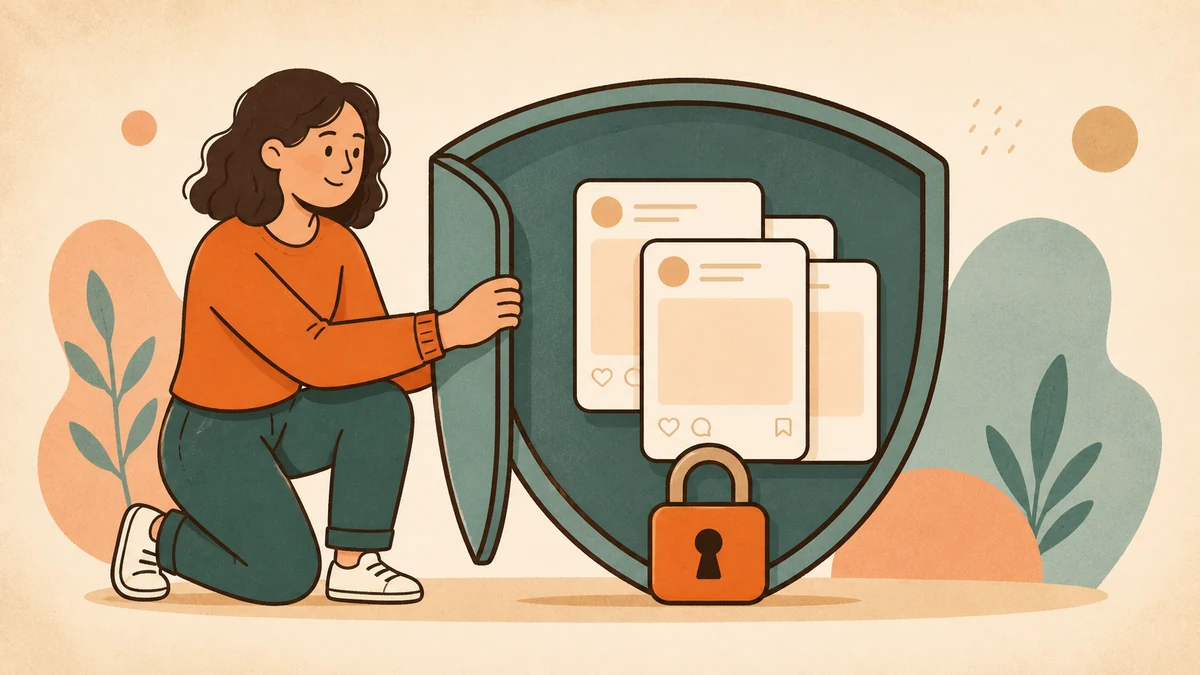
To make your X account private, open Settings and privacy → Privacy and safety → Audience and tagging, then turn on Protect your posts. New people must request permission to follow you, and only approved followers can see your protected posts.
Make your Twitter account private in three steps
- 1
Open Settings and privacy
Open the X navigation menu, then select Settings and privacy.
- 2
Open Audience and tagging
Select Privacy and safety, then open Audience and tagging.
- 3
Protect your posts
Turn on Protect your posts. New follower requests now require your approval.
On the X website
- Select More in the left navigation.
- Open Settings and privacy, then Privacy and safety.
- Select Audience and tagging.
- Check or turn on Protect your posts.
On iPhone or Android
- Tap your profile photo to open the navigation menu.
- Tap Settings and privacy, then Privacy and safety.
- Tap Audience and tagging.
- Turn on Protect your posts.
X maintains the current steps in its privacy-setting instructions. The labels are shared across mobile and the web, even if the menu icon changes.
What changes when you protect your posts
- New followers need approval. You can approve or deny each incoming follower request.
- Existing followers keep access. Remove or block an existing follower if you no longer want that account to see your protected posts.
- Your posts are limited to followers. People outside the approved group cannot open the protected posts on X.
- Reposting is restricted. Followers cannot use X's normal repost control to redistribute a protected post.
- Replies have a smaller audience. If you reply to someone who does not follow you, that person may not be able to see the protected reply.
What remains visible
Protecting posts does not hide the entire account. Your display name, profile photo, header, bio, username, follower counts, and other profile information may remain visible. X also notes that approved followers can capture images of protected posts and share them elsewhere. See its explanation of public and protected posts.
Direct-message settings are separate from post protection. Review those settings too if your goal is to control who can contact you.
What happens to old posts and search results
Posts already on your profile become protected on X after you turn the setting on. That does not retrieve copies made while the account was public. Screenshots, quoted text, cached pages, and old search results can remain outside your control.
If an old post contains information you no longer want online, review and delete the post directly rather than relying on the privacy switch alone.
Manage follower requests
New follower requests wait for your decision. Check the requesting profile, approve people you want in the audience, and deny requests you do not recognize. Accounts that followed you before protection remain followers until you remove or block them.
How to make the account public again
Return to Audience and tagging and turn off Protect your posts. Your posts, including older protected posts, become publicly visible. X recommends reviewing pending follower requests first because those requests are not automatically accepted when protection is removed.
Follow the complete guide to make your X account public before switching if you want to review every consequence.
Troubleshooting
- The setting does not appear
- Update the mobile app or open x.com in a browser. Confirm you are in Audience and tagging rather than a separate discoverability menu.
- Someone still sees your posts
- Check whether the person already follows you. Existing followers retain access after protection is enabled.
- An old result still appears in search
- Search engines and third-party caches can take time to refresh. Delete sensitive source posts and use the relevant search engine's removal process when necessary.
- The toggle will not save
- Refresh the page, restart the app, sign in again, or try the web version. If the problem continues, check X's support status.