Can You Schedule a Story on Instagram? How It Works
·10 min read

The short answer to can you schedule a story on Instagram is yes, but usually not from the regular Instagram Story composer. The practical routes are Meta Business Suite for an eligible professional account, or a third-party scheduler that supports Instagram Stories. Some tools publish the prepared media automatically. Others send a reminder so you can finish the Story in Instagram.
That distinction matters because a Story is more than a vertical image. Polls, questions, music, countdowns, link stickers, and other native features may need a final in-app step. If you need a broader overview of scheduling Instagram content and other networks, start with the Instagram scheduling guide. This page focuses on Stories and the points where the workflow changes.
Treat account connections as part of the publishing workflow, too. Use OAuth where it is offered, review the account and permissions shown during authorization, and keep a recovery path for expired access. The Instagram automation safety guide covers the broader connection and automation risks.
Can you schedule Instagram Stories today?
The Instagram app does not offer the same native Story scheduling control as its feed-post and Reel workflows. For current publishing and format coverage, check Meta's official Instagram APIs documentation. In practice, the phrase “schedule an Instagram Story” often means that another Meta surface or a scheduler holds the media and sends it through the connected publishing workflow.
The technical difference is useful to understand. A Story is short-lived, normally disappearing after 24 hours, and it does not behave like a feed caption. The technical explanation of Story scheduling workflows describes the external queue-and-publish model and why API coverage should be checked before promising a fully automatic Story workflow.

What scheduled publishing actually means
A scheduled Story is prepared in advance, stored in a queue, and associated with a date and time. There are two different outcomes:
- Auto-publish: the connected workflow sends supported media to Instagram without a manual tap at the publication time.
- Reminder publishing: the scheduler alerts you, and you open Instagram to add native features or tap Share yourself.
Professional-account access is the important starting point. For the scheduling paths in this guide, use a Business or Creator account and confirm the connected Page, business asset, and publishing permissions when the platform requests them. Personal accounts remain suitable for manual posting, but they should not be treated as interchangeable with professional scheduling access. See the guidance on Instagram Story scheduling account requirements for the account distinction.
Stories also need different media preparation from feed content. Before scheduling a video, review the export, crop, and compression. This guide to fixing blurred Story videos is a useful reminder that a queue cannot repair a weak source file.
Choosing the right way to schedule Stories
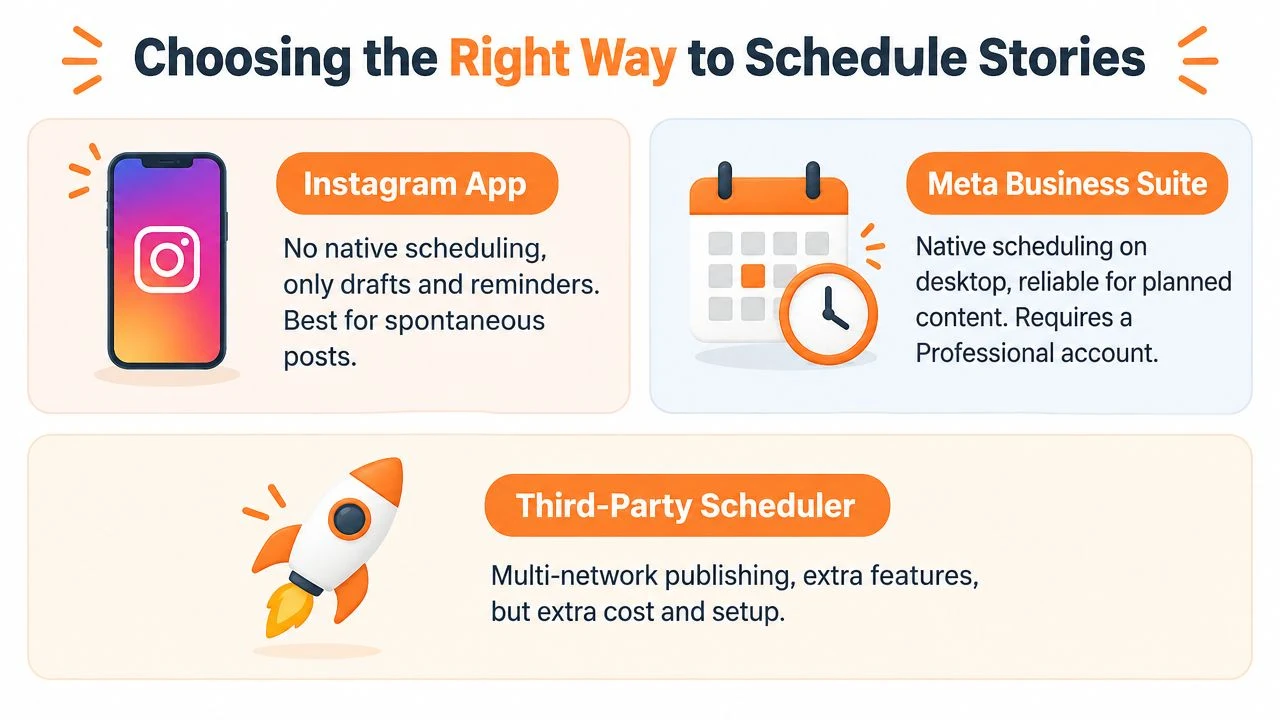
Pick the workflow based on what the Story needs to do, not just on whether a tool has a calendar. A clean announcement or product image is easier to prepare ahead of time. A poll, question box, or music-led clip may be better as a reminder or a manual post.
| Workflow | Story scheduling | Account requirement | Best for |
|---|---|---|---|
| Instagram app | No native Story queue; prepare and publish manually. | Any account for manual posting | Spontaneous posts and full interactive editing |
| Meta Business Suite | Available through the Planner or Content flow when the connected account supports it | Usually a Business or Creator account with the required connected assets | One brand, planned content, and a Meta-managed workflow |
| Third-party scheduler | Depends on publishing permissions; may auto-publish or send a reminder | Usually Business or Creator access for automatic publishing | Multi-network calendars, collaboration, and batching |
Match the workflow to the content
Stay in Instagram when the Story depends on the full native editor. Drafts and a phone reminder can still reduce the work without pretending that every interactive feature can be scheduled.
Use Meta Business Suite when you manage one connected professional account and want a Meta-owned planning route. Use a third-party scheduler when you need several networks, shared review, workspaces, or one queue for a larger publishing routine. For a wider platform-by-platform view, compare platforms with native scheduling.
Schedule the parts that need consistency. Publish manually the parts that need Instagram's full interactive toolkit.
The creative input still matters. A calendar cannot turn a weak image into a useful Story. This practical guide to photography for social media audiences is a helpful pre-scheduling check.
How to schedule Stories with Meta Business Suite
Meta Business Suite is the first workflow to check when you want advance Story publishing without adding another scheduler. The labels and available actions can change, so treat the queue, not an unfinished composer, as confirmation that the Story was saved.
- Confirm the account connection. Use a Business or Creator Instagram account, confirm the connected Page or business asset when Meta asks for one, and check that you have permission to publish.
- Open Planner or Content. Open Meta Business Suite on desktop and choose the planning or content area that lets you create a Story for the connected Instagram account.
- Upload and review the Story. Choose the Instagram account, upload the vertical image or video, and review the crop, text placement, sequence, and preview before setting a time.
- Set the date, time, and timezone. Choose the intended publication time, check the timezone shown by Business Suite, and select Schedule instead of Publish.
- Verify the queue and live Story. Return to Planner or Content to confirm that the item is scheduled, then check the live Story after publication and correct anything that rendered differently.
If Business Suite does not show the Instagram account, check the account selector, connected Page or business asset, and access role before re-exporting the media. For a similar Meta publishing pattern, see the guide to scheduling Facebook posts, while remembering that Story feature support can be different.
After the Story goes live, open it from Instagram and check the crop, text placement, sequence, and any call to action. If an interactive element was important, confirm it manually rather than assuming the preview represented the final native layer.
How to schedule Stories with a third-party scheduler
Third-party scheduling makes sense when Instagram is only one part of the publishing routine. The operational benefit is a shared composer, calendar, approval path, and queue across the networks you actually use. The trade-off is setup, permissions, and a feature boundary around native Instagram editing.
Connect the account securely
Prefer the network's OAuth connection and review which Instagram profile and permissions the scheduler sees. Do not assume that a connection that looks successful can publish every Story format. Run a small test with the exact media type before building a full week of content.
Build the Story in the central composer
Upload the image or video, arrange multiple frames if the tool supports them, and keep the copy specific to the vertical format. Review the preview and inspect the safe areas near the top and bottom of the frame. Set a specific time, choose the account, and check whether the action is labelled auto-publish or reminder.
Know whether it auto-publishes
Reminder publishing is often the better choice for music, polls, questions, countdowns, and other native stickers. A prepared image or straightforward video is a better candidate for auto-publish when the connection explicitly supports it. If price is part of the decision, compare affordable scheduler options for solopreneurs and then test the exact Story path. For a broader comparison, see the guide to 21 social media scheduling tools.
Story limits, dimensions, and features to check
Scheduling solves the timing problem, but it does not recreate every control in Instagram's Story editor. The biggest gap is usually interactivity. Guidance on scheduled Instagram Story limitations is a useful reminder to test polls, quizzes, question boxes, countdowns, music, location tags, and sticker-based calls to action instead of assuming they will survive auto-publishing.
Prepare the media correctly
- Start with 1080 × 1920. Use the Instagram Story image-size guide to check the practical vertical canvas before upload.
- Protect the safe areas. Keep important text away from the top and bottom controls, then review the scheduler's crop rather than trusting the original file.
- Check video export quality. A correctly sized asset can still look soft after compression, so test the actual file in the connected workflow.
- Check the timezone twice. Pick the timezone used by the intended audience or account team, then verify the saved local time in the queue before closing the tab.
Native post and Reel scheduling limits do not automatically become Story limits. Current guidance on Instagram scheduling limits can help you identify which numbers refer to feed content, but verify the current control and horizon for the Story workflow you are actually using.
Use a hybrid publishing plan
A useful compromise is to schedule the base media and add the interactive layer manually when the Story goes live. You can also schedule an informational frame first, then publish a poll or question from the app when someone is available to monitor replies. This keeps the predictable part of the work in the queue without promising hands-off publishing where the format does not support it.
Troubleshooting and best practices for reliable Story scheduling
Most failures come from account setup, permissions, media, or timezones. Fix the connection and queue state before uploading the same file repeatedly.
- Story option is missing: confirm that you are in Meta Business Suite or a Story-capable scheduler, then check the account type and current permissions.
- Account does not appear: review the connected Page or business asset, account selector, and access role.
- Media is rejected: re-export a clean vertical image or video, simplify the media combination, and upload it as a new queue item.
- Story goes live at the wrong time: compare the intended local time with the scheduler timezone and the saved queue timestamp.
- Only a reminder appears: treat it as a feature or permission boundary, finish the Story in Instagram, and mark interactive items for manual handling in the content plan.
- Story fails after scheduling: review the connection status and failure notice, retry only after confirming the first item is not still pending, and inspect the live Story after delivery.
Run one test Story before relying on the workflow for a campaign. Confirm the account, asset, timestamp, timezone, queue status, live rendering, and interactive follow-up. Teams building broader social media automation workflows should keep the manual-versus-automatic distinction visible in the content calendar.
The practical answer
Yes, you can schedule an Instagram Story, but the best method depends on the content. Use Meta Business Suite for a simple professional-account workflow when the Story option is available. Use a third-party scheduler when you need a broader multi-network queue. Use a reminder or manual post when the Story depends on Instagram's native interactive editor.
Donivo can help you coordinate the surrounding publishing work across supported networks with one composer, scheduled queue, automatic retries, and failure alerts. It does not replace Instagram's native Story editor, so keep the interactive step in Instagram when the format requires it. Visit Donivo when you want to test a simple multi-network publishing workflow alongside your Instagram Story routine.